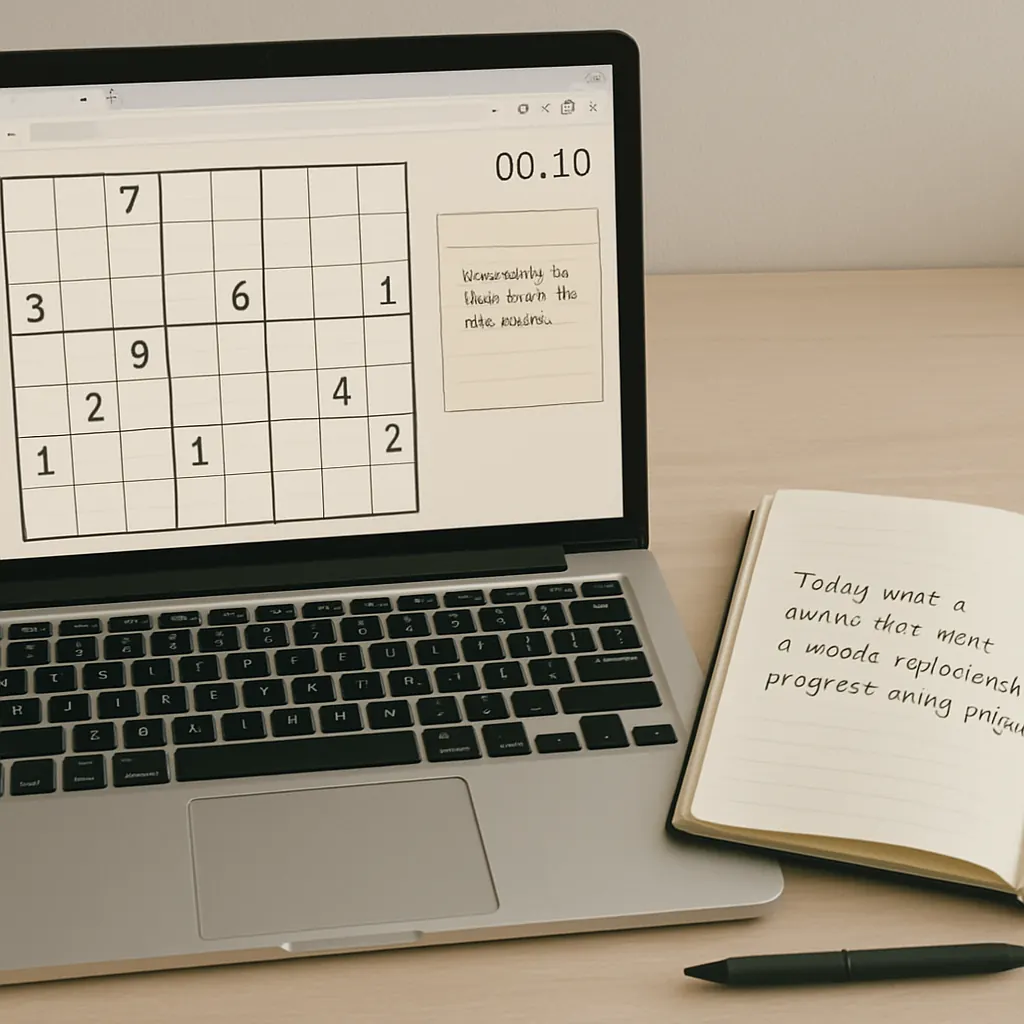
Tag: journaling

  • Browser Extensions and Tools That Make Puzzle Solving Easier

    Browser Extensions and Tools That Make Puzzle Solving Easier

    Why small tools help more than big automation

    Puzzle players often want a little nudge — cleaner screenshots, a stable timer, or a neat way to capture a thought — without turning the solving process into a shortcut. The sweet spot is small, low-friction tools that reduce friction (capturing, annotating, keeping notes) while keeping the core challenge intact. Below I list extensions and tiny web apps I use for calm, steady solving with an eye on privacy, accessibility, and low distraction.

    Design principles for choosing tools

    • Minimal permissions: Prefer extensions that ask only for what they need. If an extension wants access to all your browsing data, consider alternatives.
    • Low distraction: Disable automatic updates, notifications, or in-app feeds. Tools that sit quietly in the toolbar are ideal.
    • Accessibility: Look for adjustable fonts, color contrast options, and keyboard shortcuts so tools help everyone solve comfortably.
    • Local-first data: If your notes are private, choose apps or templates that store locally or let you export easily for backups.

    Essential browser extensions and what to use them for

    Grid overlays and rulers

    When working on logic grids or hidden-picture puzzles, a simple on-screen grid overlay speeds visual alignment and prevents counting mistakes. Search for lightweight extensions called Grid Overlay or Page Ruler Redux. Key tips:

    • Pick overlays with adjustable opacity and grid spacing so the underlying puzzle remains readable.
    • Use the toggle shortcut; don’t leave overlays active by default.

    Screenshot and annotation

    Quickly capturing a state and annotating it is often more efficient than copying text. Try a screenshot tool that supports in-browser cropping and arrow/text annotations (examples: Lightshot, Nimbus). When annotating, adopt a consistent colour scheme: one colour for hypotheses, another for confirmed facts.

    Timers and focus helpers

    Built-in timers, simple countdowns, or Pomodoro extensions help you practice timed solving without turning sessions into a race. Choose timers that show remaining time in the toolbar and optionally vibrate or flash when finished. For a calm practice, try 25–40 minute focus segments with a 5–10 minute review break.

    Contrast, fonts and readability

    Extensions like Dark Reader or font-size controllers make puzzles easier to read in low-light or high-contrast situations. Use them sparingly: the goal is clarity, not changing puzzle aesthetics. Increase line-height or enable dyslexia-friendly fonts when you notice visual fatigue.

    Clipboard and quick snippets

    Small utilities that keep a history of your clipboard or let you save short snippets of text are useful for jotting repeated candidate names, coordinates, or common notations. Look for clipboard manager extensions that encrypt local data if you paste sensitive content.

    Lightweight web apps and templates

    Web apps can complement extensions: simple timers, whiteboards, and note pads that avoid social features. For journaling after a session I use a two-part structure: a fast summary and a short action note. If you want ready-made options, try the downloadable journal templates that emphasize five lines: date, puzzle type, time spent, one thing learned, one exercise for next time.

    For notation and small grids, a handful of tiny HTML tools let you draw or export compact grids. These are helpful when you rely on specific shorthand — if you use the notation patterns I describe elsewhere, consider tools that implement or support those approaches: notation helpers and templates.

    Tools for cooperative and multiplayer sessions

    Cooperative solving benefits from shared canvases and low-latency screen sharing. Simple shared whiteboards (Google Jamboard, Miro, or open web whiteboards) let people sketch the same grid and add sticky notes. For privacy-focused meetups, services like Jitsi provide browser-based screen sharing without installing a large app. If you meet with friends, check out extensions that aid cooperative play to streamline passing notes, syncing timers, and marking progress.

    Quick workflows: three calm setups

    1. Solo practice (30–40 minutes)

      • Open puzzle in browser, enable grid overlay only when you need it.
      • Start a 35-minute focus timer in the toolbar.
      • Use screenshot + annotation to capture the puzzle state before attempting difficult steps.
      • Write a one-paragraph entry into your journal template during the 5-minute break.
    2. Short review session (10–15 minutes)

      • Open your last journal entry and copy the single exercise you planned.
      • Set a 12-minute timer and work on that focused exercise; annotate when you discover an insight.
    3. Co-op puzzle night (60–90 minutes)

      • Start a shared whiteboard and a single shared timer so everyone follows the same rhythm.
      • Assign one person to capture annotated screenshots and another to transcribe final notes into the journal template.

    Privacy and maintenance checklist

    • Review extension permissions before installing and revisit them quarterly.
    • Prefer extensions with a clear privacy policy or open-source code if you care about transparency.
    • Regularly export your journal and snippets so you control your data.
    • Turn off non-essential notifications and automatic updates during solving sessions to reduce distraction.

    Final note: tools to support practice, not replace it

    The right extensions and tiny apps keep the solving flow smooth: a clean screenshot, a quiet timer, a readable font, and a minimal journal entry. Use tools to lower friction, then step back to let the puzzle itself do the work. If you keep a compact routine — a focused session, an annotation habit, and a short journal note — you’ll find steady progress without losing the quiet pleasure of solving.

  • A Minimalist Puzzle Journal: What to Track in 5 Lines per Day

    A Minimalist Puzzle Journal: What to Track in 5 Lines per Day

    Keeping a puzzle journal doesn’t need to be another long task on your to-do list. The goal of a minimalist journal is to preserve the benefits of reflection—tracking progress, spotting patterns, and reinforcing insights—without outweighing the pleasure of solving. This guide gives a one-page, five-line daily template you can use in a notebook or a notes app, examples to copy, and short review routines to make the journal meaningful.

    Why keep a tiny puzzle journal?

    A compact journal preserves the habit of reflection. When you capture one clear insight and a single metric each day, you build a data set that reveals trends (faster solves, recurring mistakes, preferred puzzle types) without needing long entries. It helps you make small, guided adjustments to your routine and gives you a low-friction way to remember techniques that worked.

    The 5-line daily template (one line = one short sentence)

    Each day, record five short items. Aim for one line each so the whole entry fits on a single row or a single note. Use abbreviations as needed.

    1. Time — how long you spent (e.g., 15m, 45m).
    2. Puzzle type — name or category (Crossword, Logic Grid, Nonogram, Daily Sudoku, Word Ladder).
    3. One insight — a single sentence: technique tried, mistake to avoid, or a small realization (e.g., “scan for singleton rows first”).
    4. One metric — a chosen difficulty or efficiency measure (see note below on which scale to use).
    5. Mood tag — one word that captures how it felt: calm, focused, frustrated, playful.

    Example line: 20m • Mini-Sudoku • Mark pencil candidates earlier • D4 • calm

    How to fill each line quickly

    • Time: use shorthand (m for minutes, h for hours). If you do several short puzzles, sum them or list as 3x10m.
    • Puzzle type: a 2–3 word label that you’ll recognize later.
    • One insight: force yourself to write only one sentence—this creates clarity and makes retrieval easy.
    • Metric: pick one simple scale and stick to it for trend analysis. For guidance on scales, see note puzzle difficulty.
    • Mood tag: keep a small list of tags (calm, focused, stuck, flow, amused) so entries are fast to choose.

    Two quick templates you can copy

    Printable (one row):

    DATE | TIME | TYPE | INSIGHT | METRIC | MOOD

    Digital (single-line note):

    2026-06-01 — 25m • Crossword • flag theme words first • D3 • focused

    If you use a simple note app, pin the monthly page and add a new line each day. If you use a notebook, reserve one page per month for quick scanning at the end of the period.

    Four short examples (realistic short entries)

    • 2026-03-05 — 15m • Wordle x2 • try vowel-first guesses • D2 • playful
    • 2026-03-06 — 40m • Logic Grid • mark contradictions immediately • D4 • focused
    • 2026-03-07 — 10m • Mini-Kakuro • re-evaluate row sums after fills • D3 • calm
    • 2026-03-08 — 30m • Daily Sudoku • pencil in all candidates once • D3 • flow

    Choosing the single metric to track

    Resist the urge to measure everything. Choose either a difficulty rating, a time efficiency metric, or a success rate and use it consistently. If you want help deciding which scale works for your session types, see note puzzle difficulty for practical options. Common choices:

    • Difficulty scale (D1–D5) for variety across puzzle types.
    • Time spent (minutes) for practice-focused days.
    • Percent complete or solved/attempted for goal-oriented weeks.

    Monthly review in 10–15 minutes

    At the end of each month, spend a short time scanning the page for patterns. Look for:

    • Repeated insights that can be turned into habits.
    • Shifts in average time or difficulty.
    • Frequent mood tags that tell you when puzzles felt most enjoyable.

    This minimalist approach pairs well with a month-long practice plan—if you follow a four-week challenge, your daily lines become the progress markers you need to track your 4-week progress. During the review, copy three notes to a fresh page: a habit to keep, a technique to practice next month, and one measurable target (e.g., reduce average time by 10%).

    Digital templates and quick automations

    If you prefer digital systems, keep the template in a notes app or a simple spreadsheet. Use a pre-filled template so adding a new line is one tap. For browser-based puzzle play, small browser extensions or note widgets can paste the current date and time into your template automatically. For a list of tools and suggested digital templates, see digital templates and tools.

    Accessibility and keeping it enjoyable

    Minimalist journaling is about keeping the entry cost tiny so you keep doing it. If writing is a barrier, record a 10–20 second voice memo that follows the five-line template and transcribe only monthly highlights. If small handwriting is a problem, use larger notebook lines or a simple digital form with big buttons.

    When to skip the journal

    If a session is purely recreational and you don’t want to break flow, skip the entry. The journal should help your practice, not become an obligation. A good rule: if you skip more than three sessions in a row, treat the next entry as a reset—write a single line noting why you paused and one small goal for getting back on track.

    Final notes

    A minimalist puzzle journal gives you the observational power of reflection with nearly no overhead. One clear insight per day, plus a consistent metric, produces useful data you can act on during a short monthly review. Use the five-line template in a notebook, a notes app, or a spreadsheet, and let the habit support calm, steady improvement.